
When you want to read a page on a website then your device will make a connection to the webserver to ask for the web page. It does that using a protocol called the HyperText Transfer Protocol (HTTP). On an open Wi-Fi router these requests and the responses can be seen by anyone who is listening. With wired networking then listening to the data packets zipping back and forth is more intrusive. However with wireless networking all that data is sent whizzing through the air, in every direction, for any Wi-Fi equipment to receive!
Normally a Wi-Fi adapter is set into “managed” mode which means it just acts as a client and connects to a single Wi-Fi router for access to the Internet. However, some Wi-Fi adapters can be set into other modes. For example, if I was configuring an access point (a hotspot) then the Wi-Fi needs to be set into “master” mode, more about that soon. Another mode is “monitor” mode. In “managed” mode a Wi-Fi network interface ignores all data packets except those specifically addressed to it. However in “monitor” mode the Wi-Fi adapter will capture all the wireless network traffic (on a certain Wi-Fi channel) regardless of the destination. In fact, in “monitor” mode the Wi-fi interface can capture packets without even being connected to any access point (router), it is a free agent, sniffing and snooping at all the data in the air!
Not all off-the-shelf Wi-Fi adapters can do this as it is cheaper for the manufacturers to make Wi-Fi chipsets that only handle “managed” mode, however there are some out there that can be placed into “monitor” mode. During my testing and research for this article I used the TP-Link TL-WN722N.
The easiest way to sniff Wi-Fi packets is to use a Linux distribution called Kali. You can also use the more standard distributions like Ubuntu, but you will need to install some of the tools yourself. If you don’t have Linux on a laptop then the good news is that Kali Linux can be used on a virtual machine like Virtual Box.
To capture the traffic we are going to use the aircrack-ng suite of tools, plus some others like driftnet, Wireshark and urlsnarf. There are plenty of tutorials out there about capturing traffic with aircrack-ng but here is the essence:
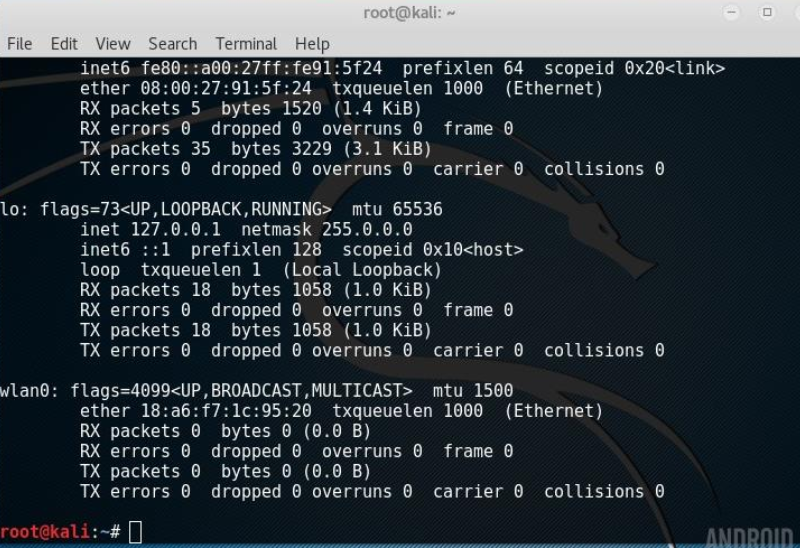
First you need to find out the name of your wireless network adapter, it will probably be wlan0,
check it run ifconfig and then to double check, run iwconfig:
Next put the card into “monitor” mode, as I mentioned before, not all adapters/cards support this, so you must make sure you are using a compatible adapter.
The command is: airmon-ng start wlan0
